
No cloud. No theatre. Just a local time clock.
Attendance, on one PC
Enroll • Register • Query • Export
Janus Gate is a simple attendance system (time clock) using face matching, running locally on any Windows PC. It is free to use.
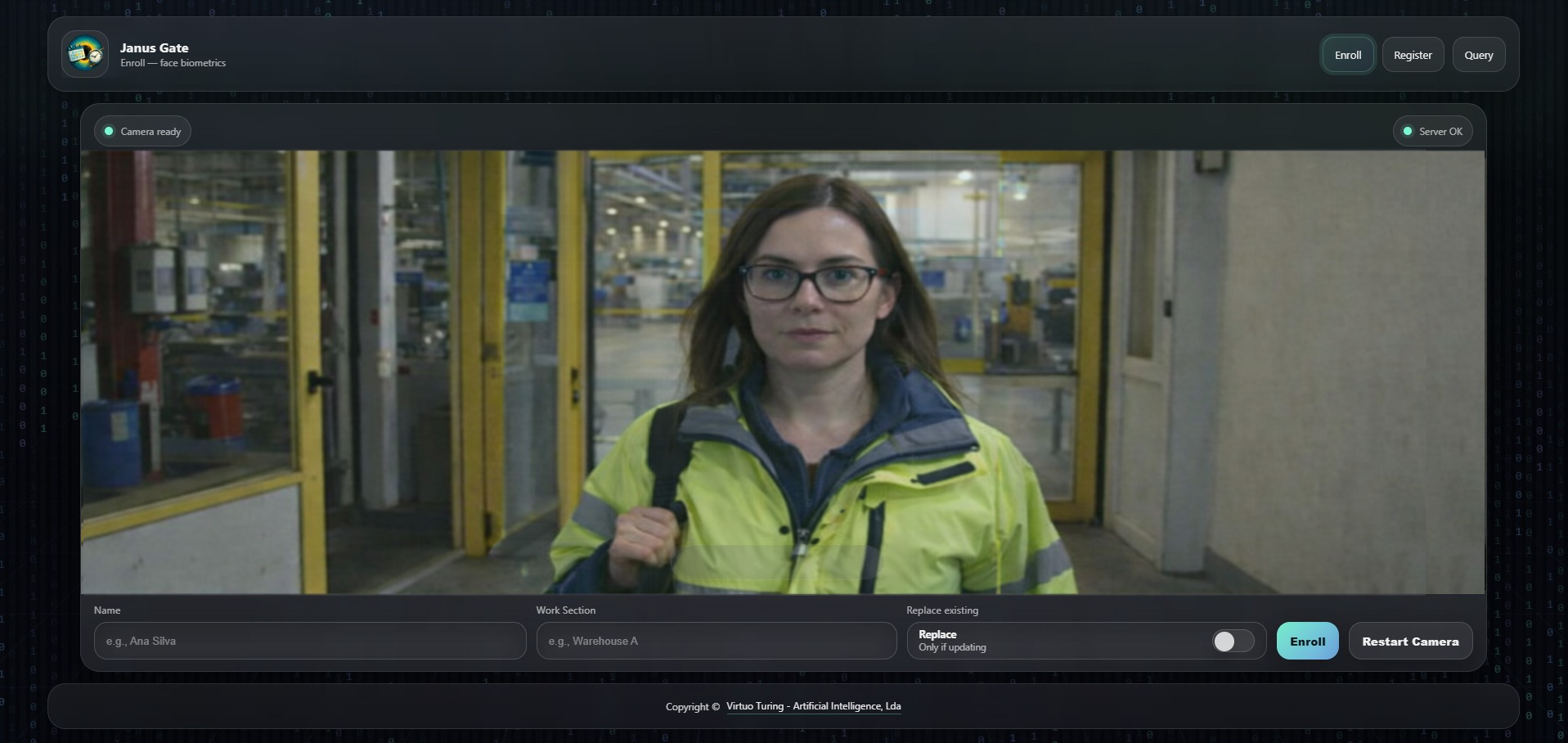
- Enroll: name + section, capture a live photo (exactly one face).
- Register: look at the camera and click REGISTER to clock IN/OUT.
- Query: filter by date range, name, section, and record type; export CSV or print.
- Charts: optional chart view when you need a quick overview.
This does not “prove identity”. It matches similarity. Lighting, angle, glasses, ageing, and camera quality will affect errors.
UI: images/janus_register.png
 Register
What it is
Local PC • Face matching • Attendance logs
A local time clock, by face matching
- Runs locally on a Windows PC.
- Keeps an internal database with facial “signatures”.
- Stores timestamped IN/OUT records and work-session durations.
- Free to use.
What the user actually does
- Look at the camera + click REGISTER to clock in/out.
- Open Query to view/export reports when needed.
Simple point: replace manual sign-in sheets with a quick local workflow.
Enroll
Name • Section • Live capture
Register a person
- Enter Name and Section (example: “Warehouse A”).
- Take a live photo using the camera.
- The capture must include exactly one face.
- If the capture has zero faces or multiple faces, it is rejected.
- The system saves a facial “signature” in the internal database.
Practical note
- Use decent lighting and a front-facing pose.
- Bad input equals bad matching later.
Register
Recognize • Toggle IN/OUT • Durations
Clock IN/OUT with one button
- Camera capture + face matching.
- If not recognized: shows “Not recognized” and tells the person to go to the registration desk.
- If recognized: automatic toggle.
Toggle logic
- If there is no open entry: creates an IN.
- If there is an open entry: creates an OUT and calculates session duration.
- If the session is < 5 hours, it assumes it might be a break and also shows the combined duration of recent sessions.
Day-to-day usage is deliberately dull: look + click.
Query
Filters • Totals • CSV • Print • Charts
Search and filter
- Go to the Query page.
- Select a date range.
- Filter by Name, Section, and record type:
-
- All
- Complete (IN + OUT)
- Open (IN only)
Outputs
- Results in a table with totals (record count, total hours, and related summaries).
- Export CSV for payroll/HR workflows.
- Print for paper trails.
- If “Chart” is selected, it shows a chart view.
Limits & risks
False negatives • False positives • Biometric data
This is not identity proof
- It is similarity matching, not verification of “who you really are”.
- Lighting, camera angle, glasses, ageing, and camera quality affect results.
- Bad threshold tuning gives:
-
- false negatives (does not recognize)
- false positives (worst case: recognizes the wrong person)
Local does not mean harmless
- It runs locally, but it is still biometrics.
- If someone gets access to the files/database, they get sensitive material.
- Lock the PC down, restrict access, and treat backups as confidential.
If you deploy it carelessly, you are not “innovating”. You are just creating a new failure mode.